Hey! Is your PC getting slow and acting weird? Find why it is happening and some ways to speed it up. Whether your system’s programs are lagging, taking forever to boot up, or it freezes randomly, a slow computer makes the simplest task hard and frustrating, worst when you need it for work, study, or gaming.
The causes of a slow PC aren’t usually obvious. I’m sure somewhere you are convinced that your hardware is outdated, but believe me it’s only one of the many reasons that can slow down your PC. The real reasons could be hiding in the software, settings, or even your daily habits.
In this guide, I’ll talk about 10 hidden reasons that might be slowing down your PC and, importantly, how to fix each of them, with easy, practical steps and speed up your PC again.
And to make your life even easier, I’ll also share a tool that automates many of these fixes, so you don’t have to become a tech wizard overnight.
Here are 10 reasons why a computer may be running slow:
- Too Many Programs Running in the Background
- Insufficient RAM or Memory
- Overloaded or Fragmented Hard Drive
- Outdated or Corrupted Drivers
- Malware or Virus Infection
- Excessive Browser Extensions and Cache
- Too Many Startup Programs
- Overheating Hardware
- Visual Effects and Animations Slowing Down Performance
- Outdated Operating System or Software
1. Too Many Background Programs Eating Your Resources
See, programs need power and resources to run, and your system’s power and resources are consumed by multiple apps that run silently in the background. You must have opened your Task Manager and wondered why your CPU or memory is maxed out? I’ll tell you, It’s usually because these programs run silently in the background, even when you are not using them. These apps use your computer’s processing power and memory which makes your system juggle multiple tasks at once which makes everything slow.
These programs consume power and leave less power behind for the task you want to do
How can you fix it:
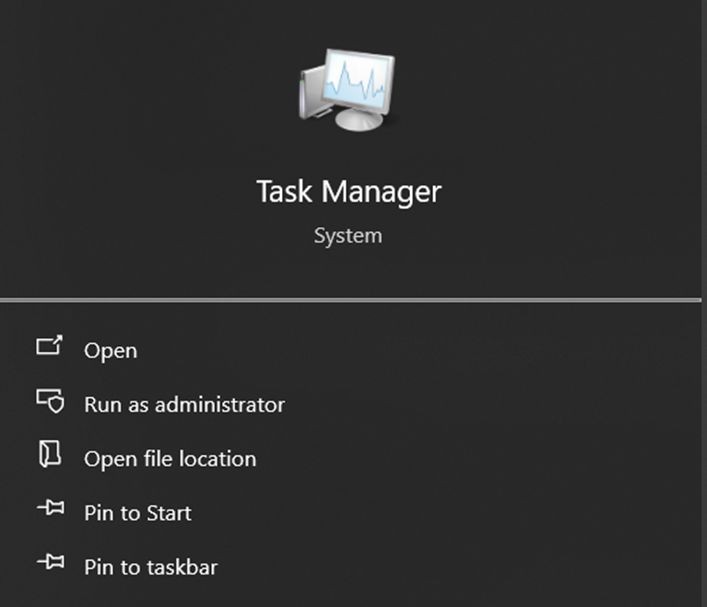
- Type Task Manager in the search bar and open it or press Ctrl + Shift + Esc to open it directly.
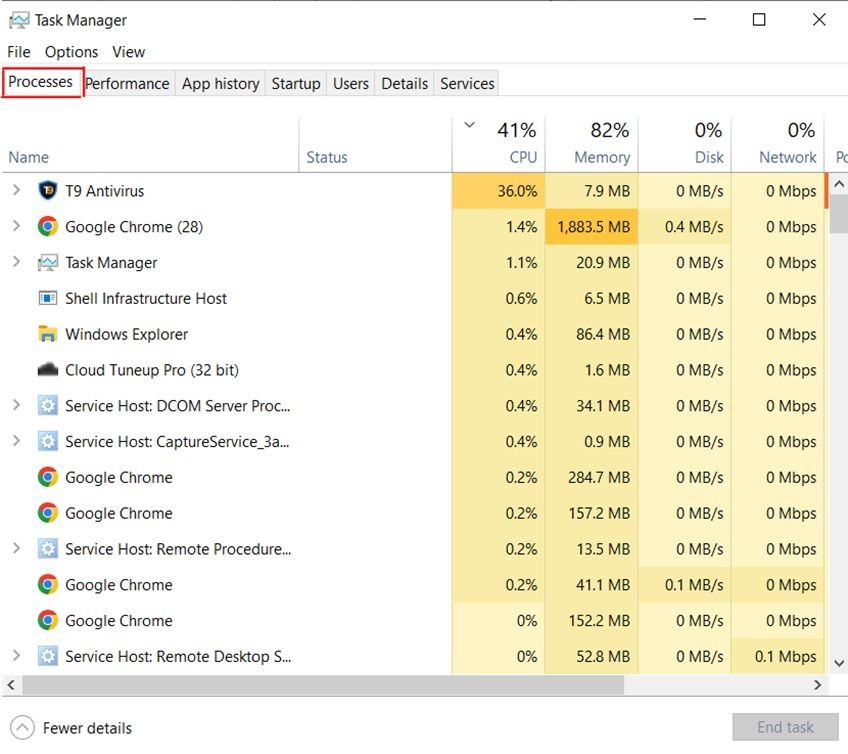
- You’ll directly view the “Processes” tab, here look for apps that are hogging a lot of CPU or memory.
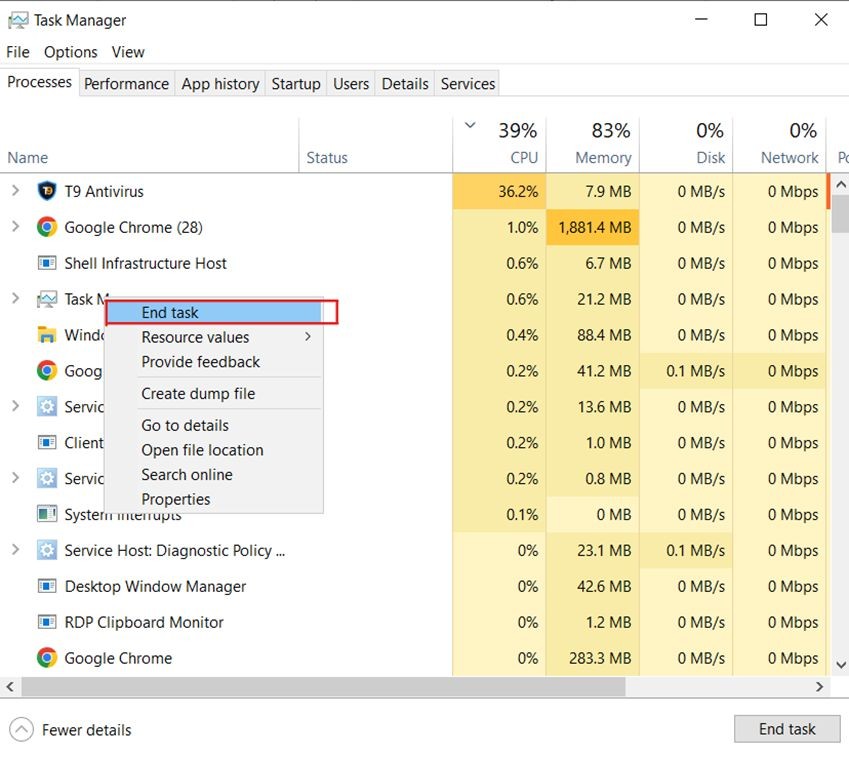
- Right-click and select “End Task” for programs that are unnecessary.
Disable unnecessary background apps from settings.
- Go to Windows Settings > Privacy > Background apps
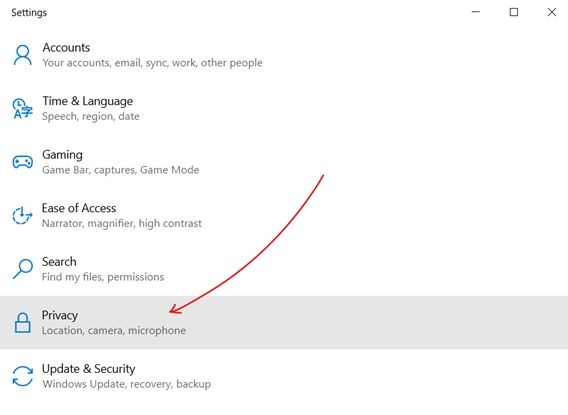
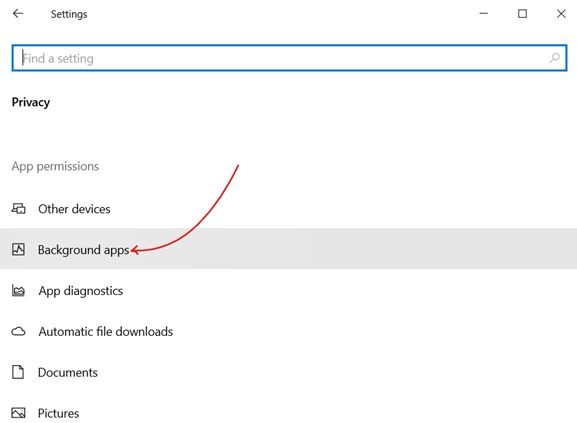
- Then turn off those you don’t need.
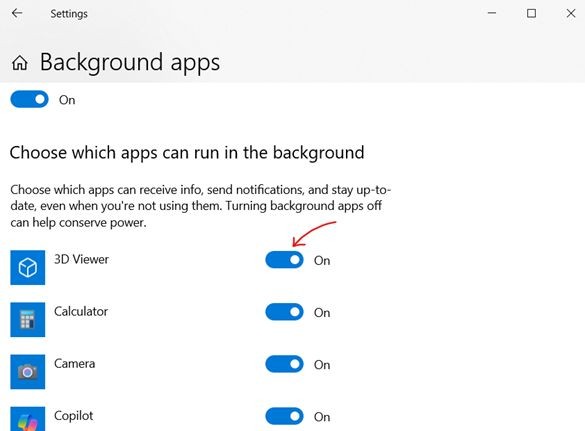
How will this help?
See reducing those background apps that you are not using but are still consuming your system’s power will free-up your RAM and CPU cycles, which will make your PC more responsive.
Handy suggestion:
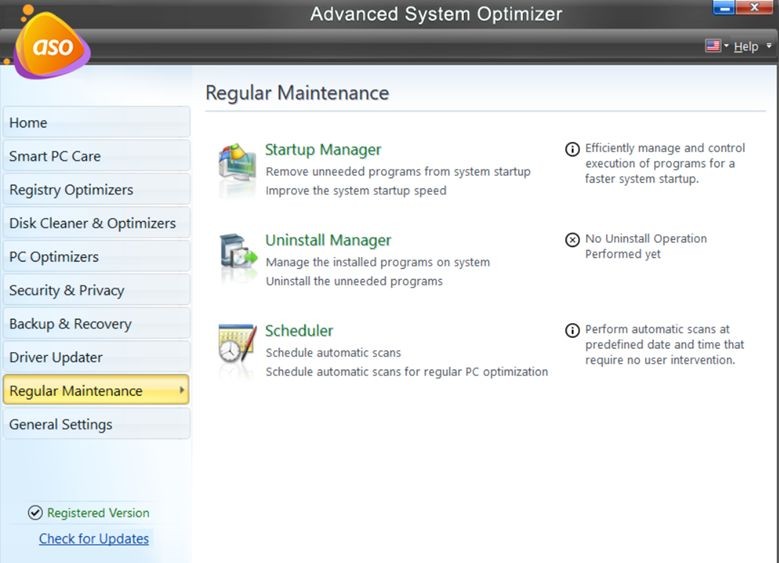
You can use a third-part for optimizing your system’s performance instead of manually hunting for startup apps, you can use tools like Advanced System Optimizer to safely manage your startup programs with a simple interface.
2. Insufficient RAM or Memory
Windows needs free disk space to run smoothly, especially your system drive because this is where temporary files, virtual memory, and updates are stored. RAM which is the short-term memory that your computer uses to run programs on your system and process data quickly. And when this RAM runs out of space, your system slows down because it doesn’t have enough RAM to handle all the tasks and applications that you wish to use, and your computer struggles to keep everything in fast-access memory and can’t process data quickly.
A low RAM system has no other option, it then uses the much slower hard drive as virtual memory. Which causes slower performance, longer loading times, difficulty multitasking, and increased disk usage, all of which lead to lag, freezes, and a generally sluggish experience.
How to free space:
- Check your RAM usage in Task Manager.
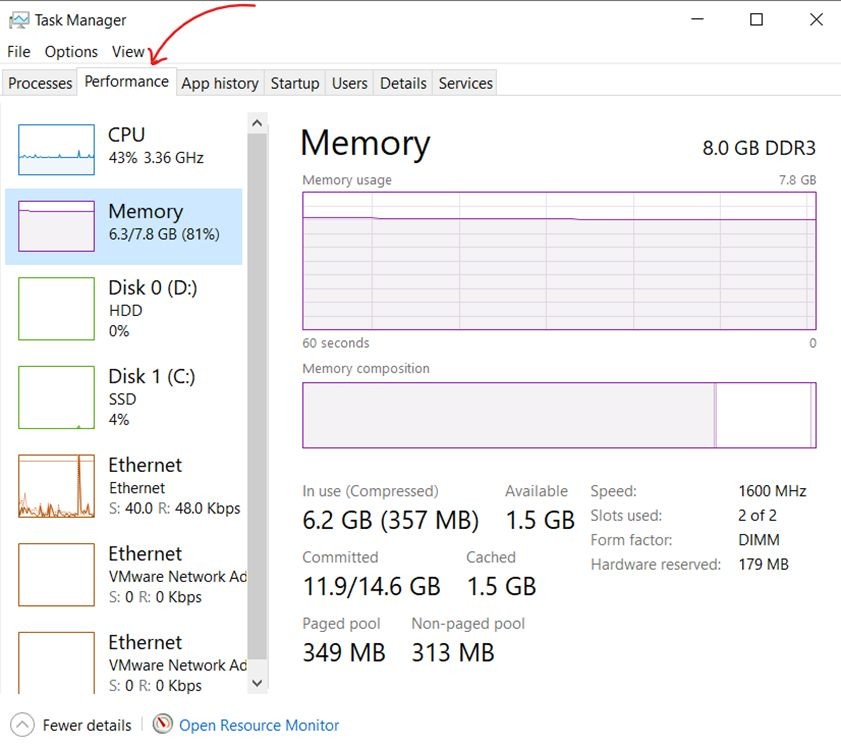
Task manager > Performance
- Close unused programs and browser tabs to free up RAM.
- If your PC supports upgrading your RAM physically, then get one.
- Use lighter software alternatives if upgrading isn’t an option.
- Delete those files that you don’t need any longer.
Uninstall non essential applications
- To uninstall apps that you don’t use go to settings > Apps > Apps & features > and uninstall all those apps that you don’t need.
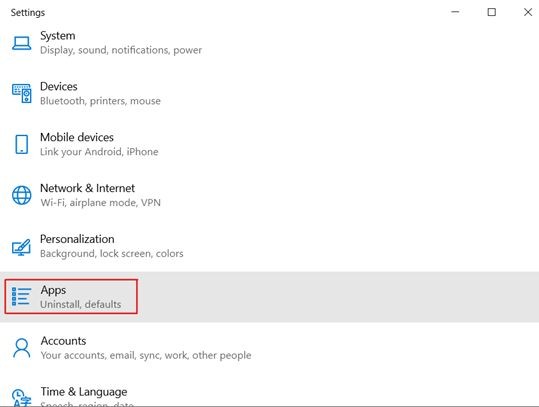
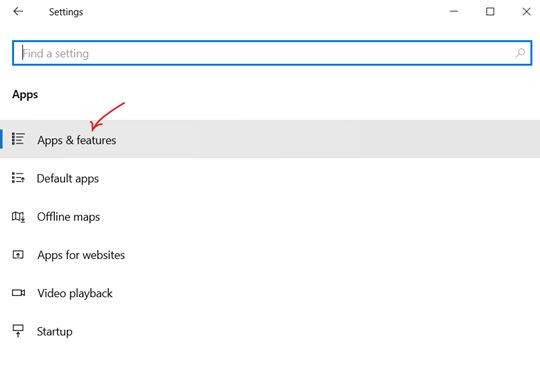
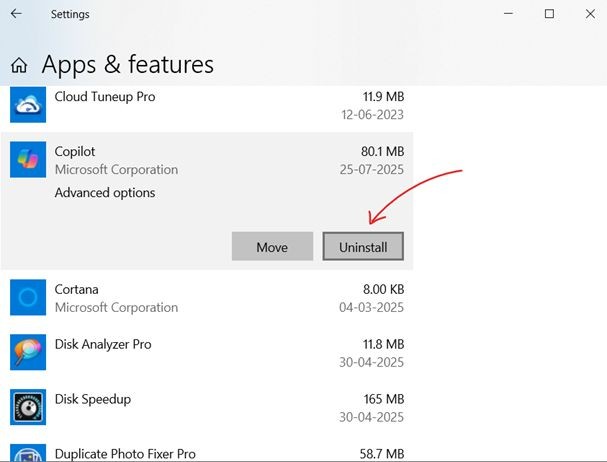
- Use external drives or cloud services to store photos, videos, and documents safely without occupying your system’s RAM or memory..
Try maintaining at least 15-20% free space on your main drive, this would optimal your system’s performance.
3. Your Hard Drive is Overloaded or Fragmented
When your hard drive is nearly full or files are scattered (fragmented) all over in unorganized format, your PC has to work harder to find data and load them. This delays file opening, program start and leads to slower boot time.
What you should do:
- Use Disk Cleanup, this is a system program that is built to clear temporary files in your system.
- Open Disk Cleanup by typing it in the search bar.
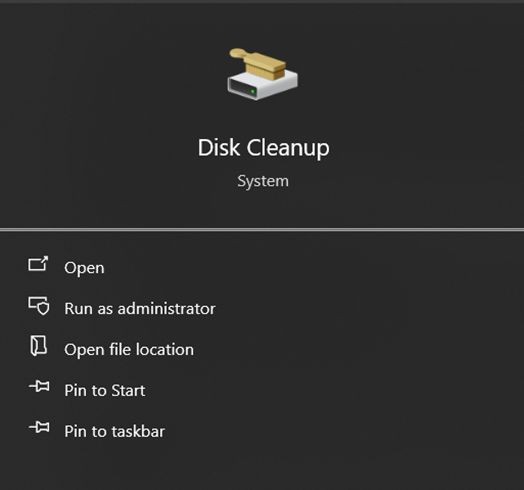
- Once opened, select the drive you want to clean up. (By default it’s usually C)
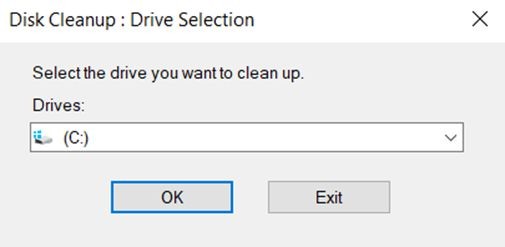
- Click on OK, and it will start cleaning up.
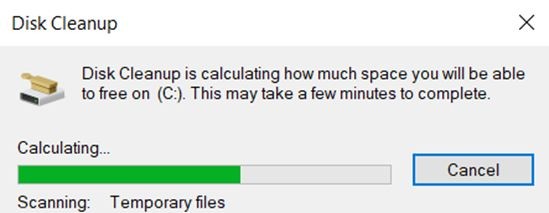
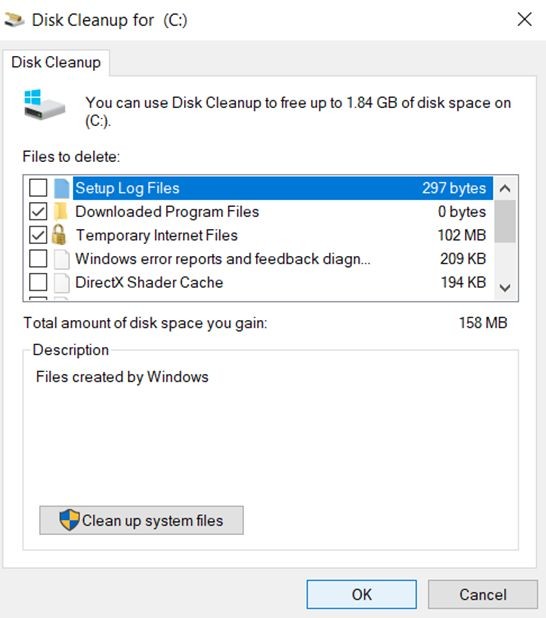
- Clear system cache, and recycle bin.
- Delete or move large unused files to external storage or cloud.
This will help because:
A cleaner and organized hard drive will let your system access files faster, and will speed up your PC.
4. Outdated or Faulty Drivers Are Slowing Your system Down
Drivers are the most essential software that helps your operating systems communicate with your hardware like graphics card, sound device, printer, etc. When these drivers are outdated, corrupted, or missing your PC stops functioning well. A faulty driver can cause system slowdowns or errors.
How can you update drivers:
- Go to Device Manager from the search bar.
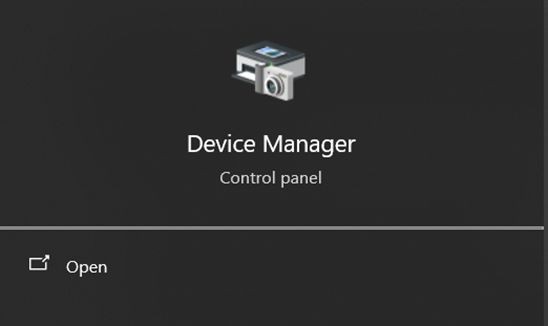
- Or press (Win + X) and click on Device Manager.
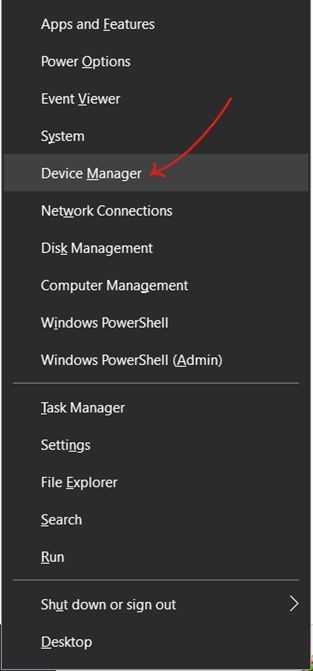
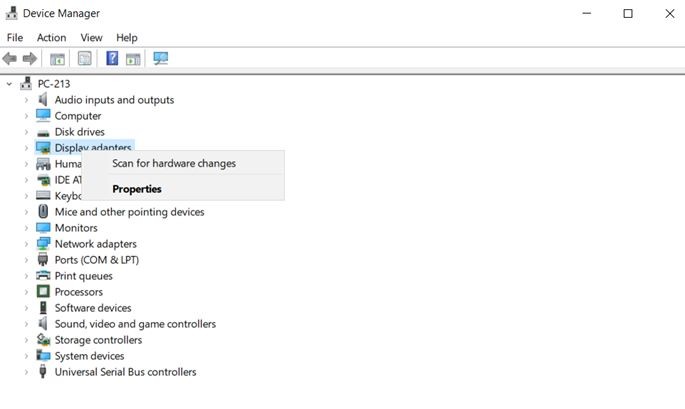
- Check for any devices with a yellow warning icon.
- Right-click devices and select the Update driver, If you don’t see the update option that means your driver is up to date.
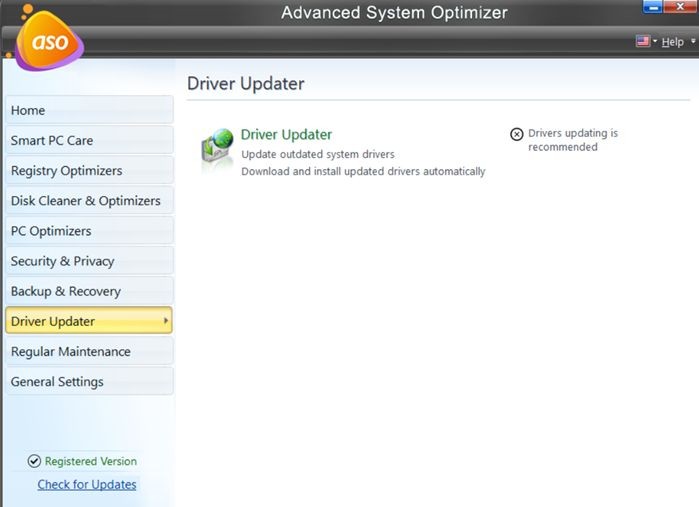
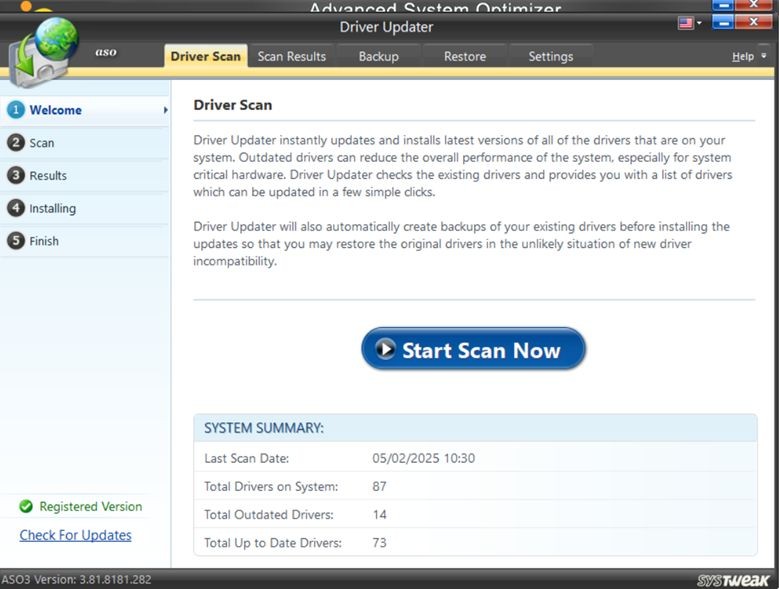
- For convenience and better safety try using Advanced System Optimizer’s Driver Updater feature This will automatically scan and update all your drivers with just one click so you don’t have to manually do that all the time.
Just click on Start Scan Now, and it will take the charge from there.
5. Malware Could Be Slowing Your PC
While running secretly on your computer malicious software uses your system’s resources for their own purposes like stealing data, mining cryptocurrency, displaying ads, or damaging files. This results in your computer slowing down or crashing at times.
How can you detect and remove them :
- Perform a full Scan on your PC using a trusted antivirus software.
- If you feel there’s some stubborn infection then consider additional malware removal tools to get them out.
- And be cautious when you download something or click on any links online to prevent such reinfection.
See, keeping malware off your PC is very crucial not just for your system’s speed but also for your security.
6. Your Browser Is Dragging Your PC Down
Your PC can also slow down when you have too many browser extensions or a heavy cache. They not just slow down your web browser but the whole system. If you feel your web browser is sluggish or pages freeze while you browse, it might be because of extensions, caches, or cookies. Because excess of any these can make your browser slow to open pages or respond, which sometimes affect overall system performance too.
What to do:
- Remove unused or suspicious browser extensions.
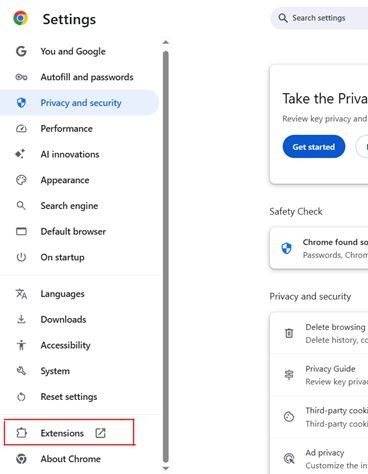
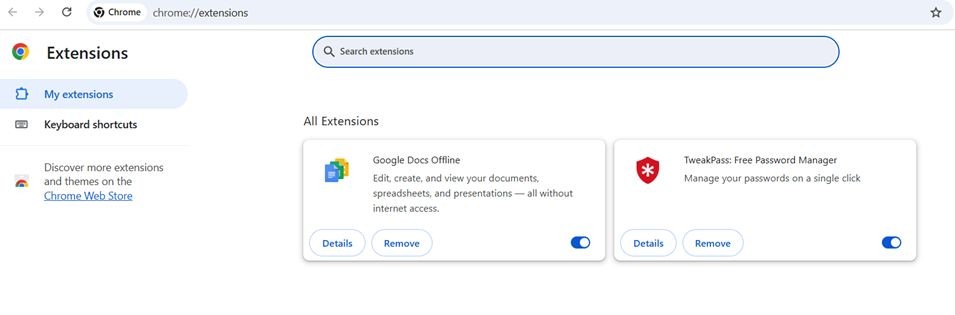
Go to your browser settings > Extensions > Click on Remove to Remove any unwanted extension.
- Clear cache and cookies regularly from browser settings.
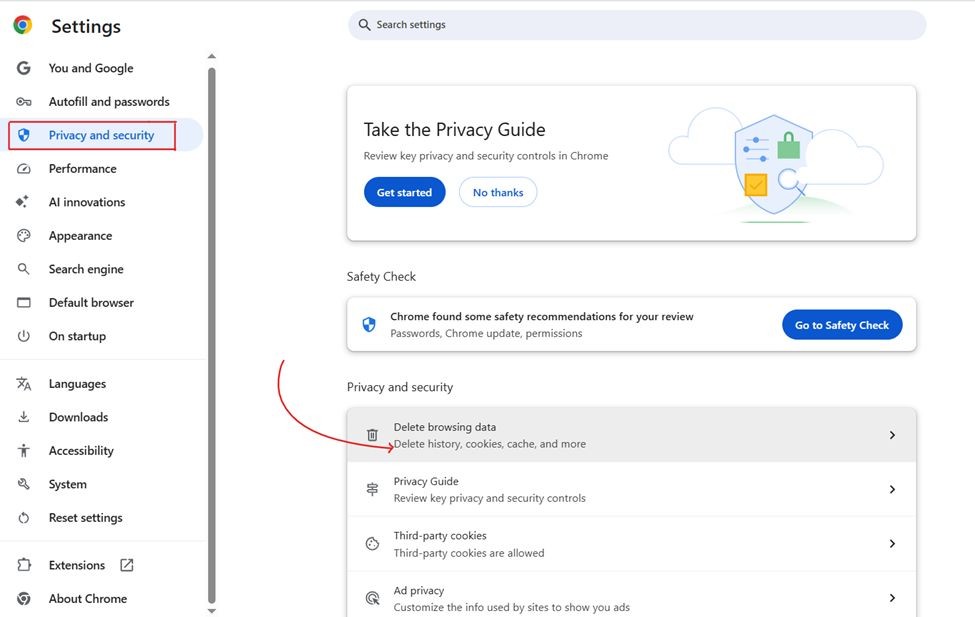
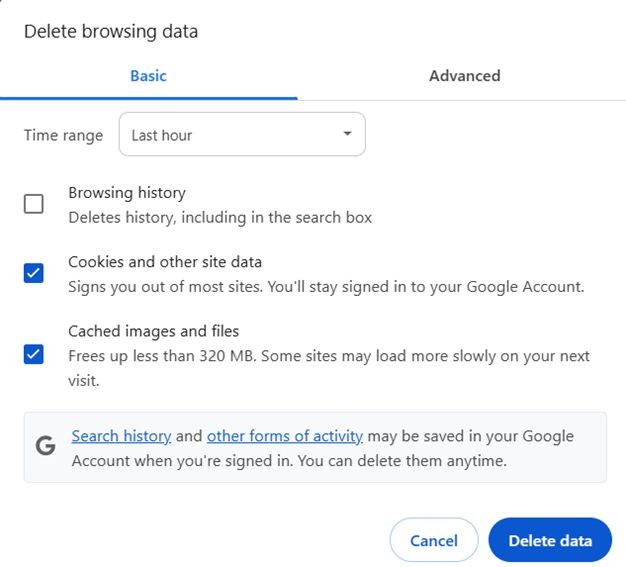
- And close unnecessary tabs that you are not working on.
These steps can improve browser performance and will reduce memory consumption while freeing up resources for other programs.
7. Too Many Services Running Silently in the Background
Some programs automatically launch when you start your computer, they are known as startup programs. Windows and installed programs in your system often run various services in the background which may increase boot time and they also consume resources early on. Having too many startup apps slows your computer’s start-up and then overall speed.
How to check:
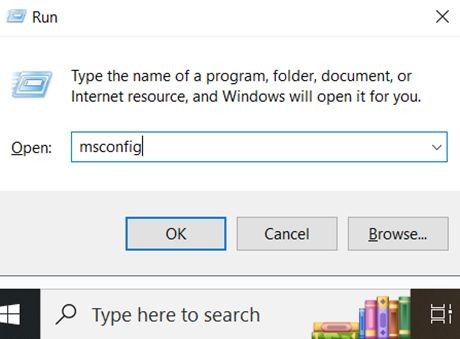
- Type msconfig in Run (Win + R).
- Go to the Services tab

- Then check “Hide all Microsoft services”
- Then uncheck important applications and disable non-essential third-party services.
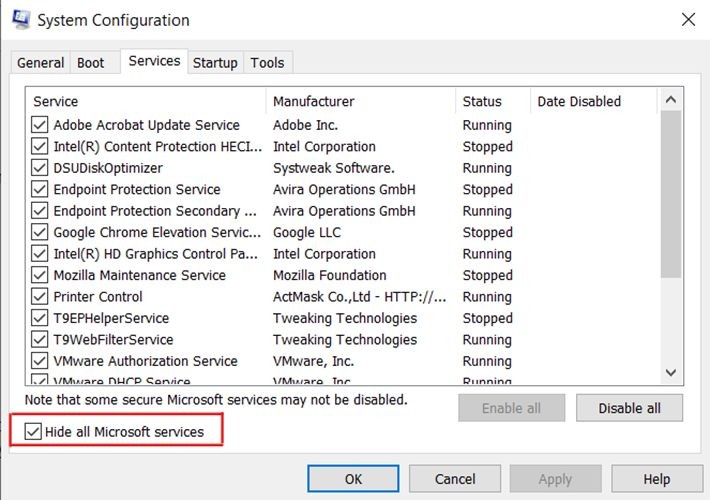
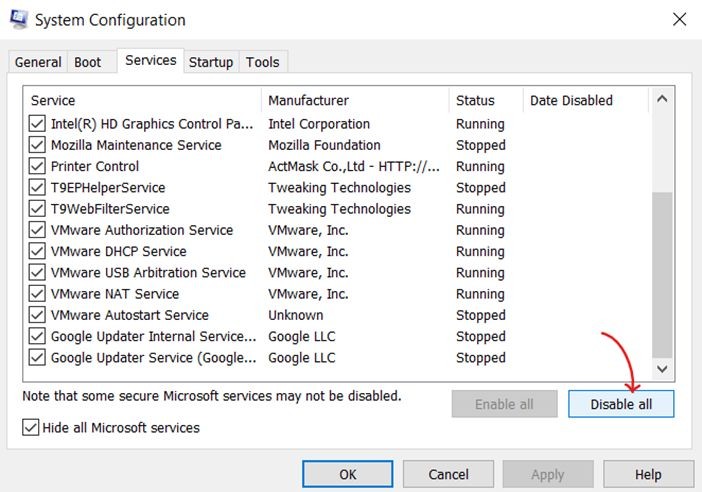
Be careful and research each service before disabling it to avoid problems.
8. Overheating Causes Your PC to Slow Down Automatically
Try to avoid all those things that overheat your system. Because when your computer or system gets too hot, it throttles its performance to prevent damage. Computers and laptops usually overheat because of dust buildup, poor ventilation, or failing fans and to avoid damage, your system slows down.
How can you prevent overheating:
- Keep vents and fans clean of dust.
- Use a cooling pad or stand for laptops.
- Don’t block air vents with soft surfaces like beds or couches.
A cool-running PC stays fast and stable.
9. Visual Effects That Look Nice but Slows Down your PC
Fancy animations, shadows, and visual effects in Windows or other operating systems use extra processing power (CPU and RAM), they might look modern but they slow down your system because of their power usage. This also depends on older or lower-end machines in reducing speed and responsiveness.
How to optimize:
- Search Adjust the appearance and performance of Windows in the search bar and open it.
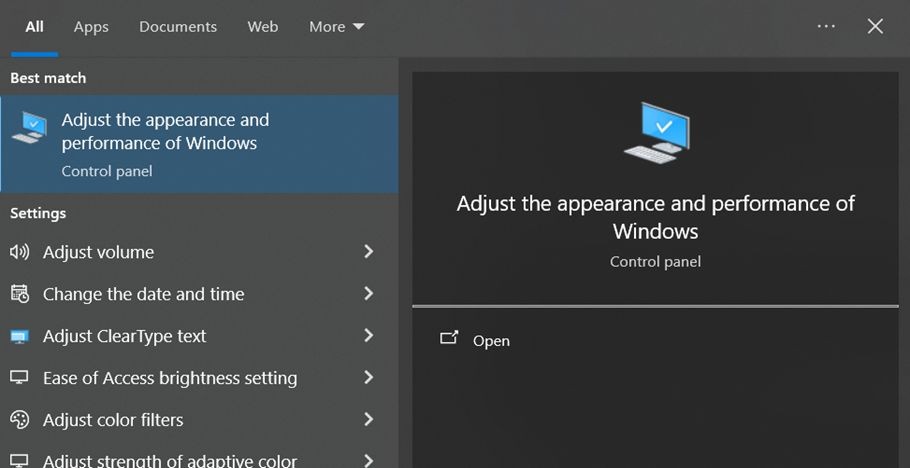
- Select Adjust for best performance and click OK.
- You can also customize by disabling effects you don’t need.
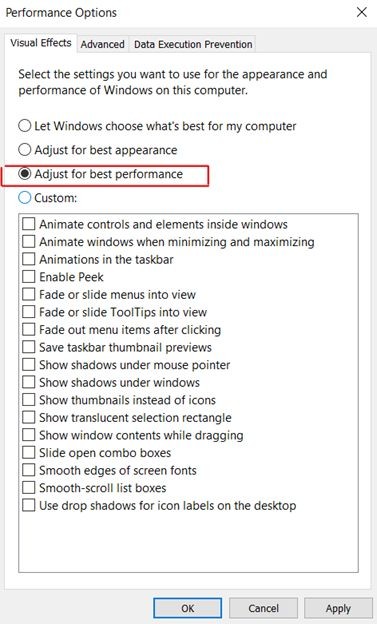
This frees up system resources, especially useful on older PCs.
10. Your Windows Version is Outdated
If your window is outdated and you are using an old version that means you are missing out on performance improvements and bug fixes. Because outdated systems can be less efficient and are slow as compared to the latest version. So make sure you always update your windows and keep it up-to-date for better performance.
How to update:
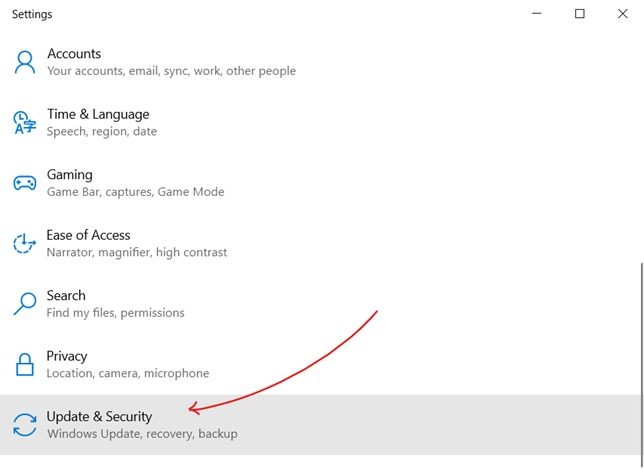
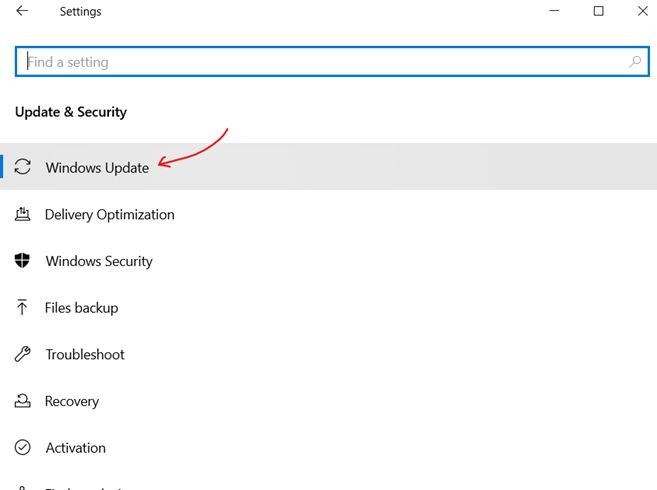
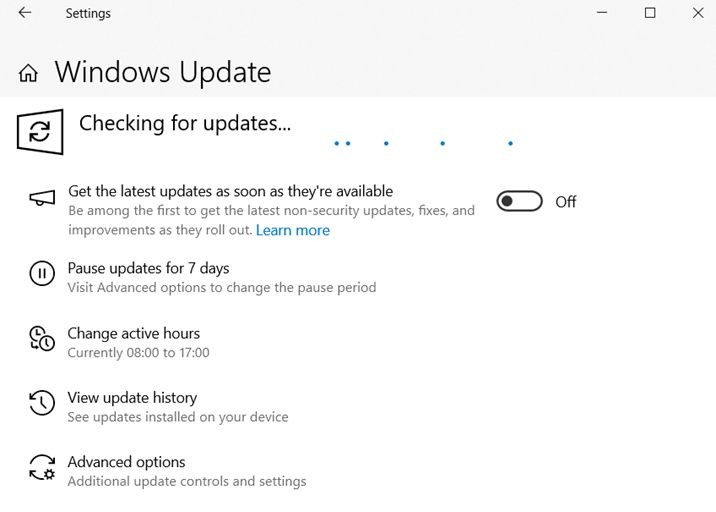
- Go to Settings > Update & Security > Windows Update.
- Click Check for updates and install all available updates.
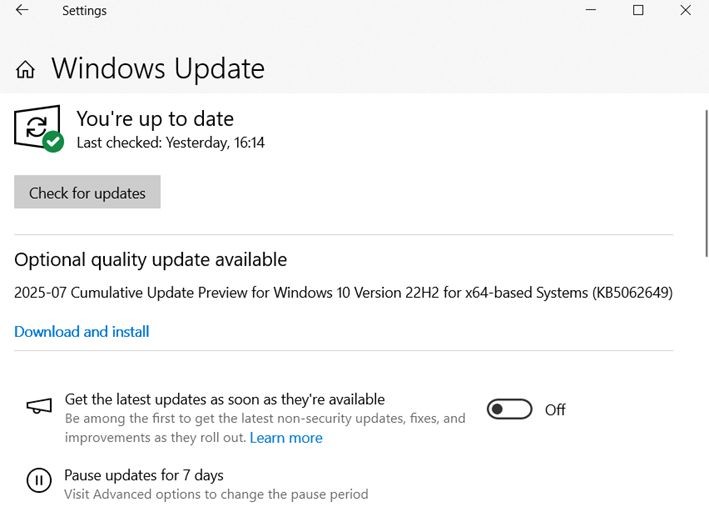
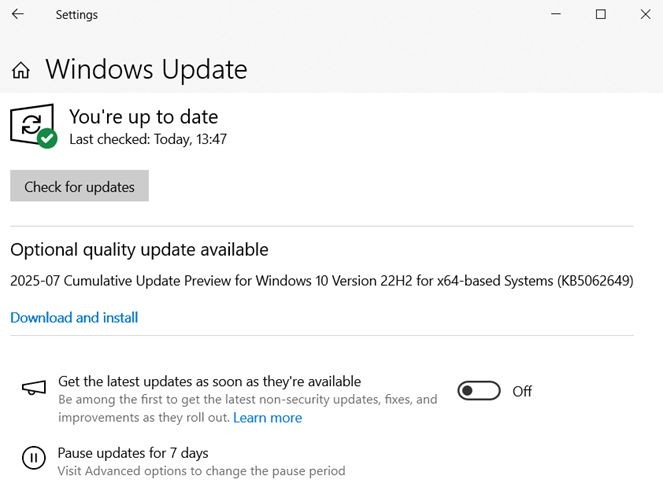
Updated Windows versions generally run smoother and safer.
How can you Easily Manage All These Fixes?
See, manually doing all these optimizations is time-consuming and sometimes gets tricky, especially when we are not tech-savvy. So I would suggest you to use any PC optimization tool that can act as your system’s caretaker.
My system’s caretaker is Advanced System Optimizer, it simplifies all these tasks for me, from cleaning junk files and optimizing startup apps to updating drivers and protecting my PC from malware software. It combines everything, with a clean, easy-to-use dashboard you don’t have to jump between different Windows tools or worry about missing something important.
With just a few clicks, it helps:
- Cleans junk files and frees disk space.
- Optimizes startup programs.
- Updates all outdated drivers automatically.
- Scans and removes malware.
- Defragments hard drives (for HDD users).
- Clears browser caches and cookies and improves responsiveness.
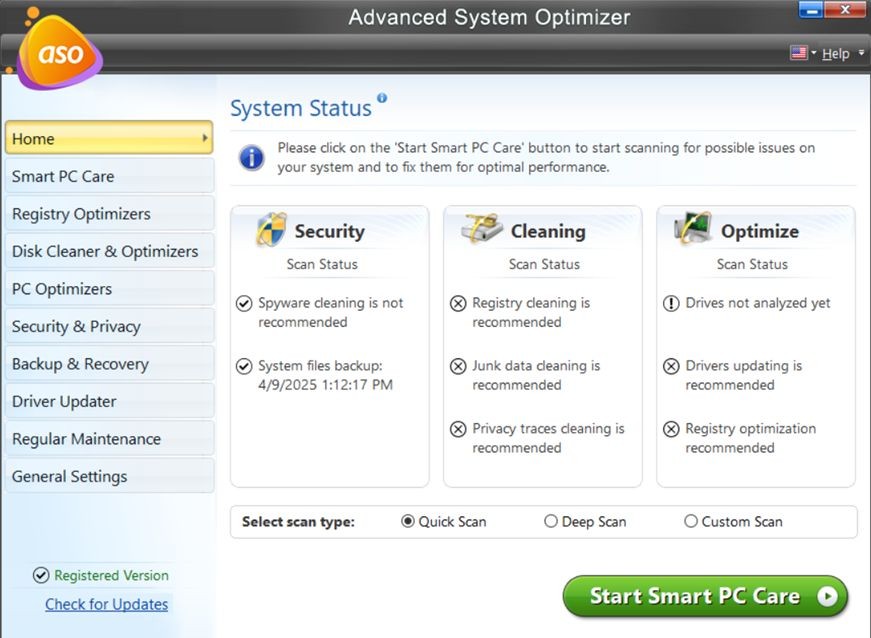
If you don’t want to fiddle with multiple tools then try this user-friendly software that keeps your PC optimized with very minimal effort.
Some Tips to Keep Your PC Speedy
- To clear temporary processes, restart your PC regularly .
- Limit startup apps.
- Try to avoid unnecessary software or browser extensions.
- Regularly clean out junk files so they don’t gather.
- Keep your software and drivers updated always.
- Avoid installing too many heavy apps, or uninstall those you don’t need.
- Backup important data before any major cleanup so you don’t lose anything.
- Schedule regular maintenance like disk cleanup, defragmentation, driver updates.
- Use lightweight programs whenever possible.
Conclusion
A slow PC can be really annoying, but most causes are hidden in plain sight, and totally fixable. Whether it’s cluttered files, outdated drivers, or malware, most issues can be resolved with simple tools and a little routine care.
By understanding these 10 common culprits and following the suggested fixes, you can fix your PC’s issues . And if you want to make PC care hassle-free, Advanced System Optimizer is a great companion to keep things running smoothly without constant manual checks.
So go ahead, take control of your PC’s health and enjoy faster, more reliable performance starting today!
