WordPress is the best content management system (CMS) for SEO. Julia McCoy lists ten reasons in her article to support this claim. The gist of her analysis is that WordPress comes with certain in-built features that take care of search engines like Google.

These features enable the search engine giant to store a site’s information on its database quickly. Additionally, they make it easier for Google to index posts, pages, tags, and categories. While most developers know about the former, the same is not true for tags and categories. It is also one reason why many sites fail to drive valuable traffic.

Not many know that using tags and categories can greatly enhance user experience and boost a website’s rank. It may seem unbelievable, but it’s true. John Hughes points out that they can indirectly impact a site’s rank on the search engine results pages (SERPs).

Tags and categories improve a website’s usability and accessibility. They ensure that visitors can easily navigate between pages on a site. Since all these features offer a frictionless user experience (UX), search engines rank a website higher in the SERPs.

Now that you have a better idea about their benefits, it’s time to include them in your SEO strategy. This article discusses how to create and add tags and categories to your WordPress posts.

Let’s begin.

Tags versus. Categories: The Major Differences

On the surface, tags and categories have the same function. They both organize content to improve the look and feel of a website. Without them, users would find it difficult to access or navigate posts or pages.

What sets them apart, then?

The main difference lies in the degree to which they can classify content on a site.

Categories are broad topics that organize content under a common idea. On the other hand, tags are highly specific and can include a keyword that is unique to a given post.

For example, if you offer web development services, then ‘WordPress’ can be one category to organize your blog.

Tags versus

Image Source: Themeisle

But ‘WordPress’ is a vast group. It can include hundreds of posts. That’s where tags come in handy. Tags like ‘theme’ and ‘plugin’ that deal with a specific aspect of WordPress can further organize your blog. Tags are units that cannot be broken down into subtags.

This is not the case with categories. You can divide them into subcategories as per your content needs.

content needs

Image Source: Themeisle

It can seem overwhelming if you are new to this aspect of managing WordPress sites. If you are not sure where to start, worry not! In the next section, we will show you the  steps to create and add tags and categories to WordPress posts. You can either involve your in-house development team or work with professional WordPress Development services for this purpose.

Categories

A category is a WordPress ‘taxonomy’ that makes others aware of the topics you publish on your website. The default category for all posts is ‘Uncategorized.’ You cannot delete it. However, giving it a more suitable title would ensure your site ranks well in the SERPs.

Renaming the default category helps the search engines to quickly work out the relevance of your content to users’ queries. A well-organized site makes it easier for them to show accurate search results to the audience. Implement the following steps to rename your default category.

  • Go to ‘Settings’ in your dashboard and select ‘Writing’ from the listed options. You will notice that ‘Default Post Category’ is the first setting on your screen.
  • Click the dropdown box and choose the category you want to set as the new default.
  • Finish the process by clicking the ‘Save Changes’ tab at the bottom.

Save Changes

Image Source: Wikitoinfo

WordPress also allows developers to create new categories. You can either use WordPress category editor or add a category directly to a post. We will discuss these two methods below.

But before that, let us look at a few key pointers when it comes to WordPress categories.

Best Practices for Categories

  • Analyze: The main purpose of categories is to help users find the content easily. If they don’t describe your posts accurately, the audience will have a tough time finding them. Therefore, give serious thought to the topics you choose to represent your posts. They should be relevant and descriptive.
  • Limit: You can use multiple categories for your post, but it will not help your SEO efforts. Most blog posts need 5-10 categories. Make sure you don’t assign an article more than ten.

Using numerous categories will defeat their purpose of being descriptive and needlessly clutter your site. If you feel the need to exceed this number, rethink your chosen topics.

  • Use Subcategories: A post usually covers many ideas. You can file content that could be further narrowed down into subcategories. Think of categories and subcategories to be in a parent-child relationship. If your post discusses a topic in detail, it will be a good idea to place it in a subcategory.

Going back to our example about web development services, if a given post deals with the Elementor theme, then ‘Elementor’ can be a subcategory under the ‘WordPress’ grouping.

With that in mind, let us discuss two methods for creating and adding categories to WordPress posts.

1. Use WordPress Category Editor

Go to ‘Posts’ in the WordPress dashboard and select ‘Categories.’ This will take you to the Category Editor. Under ‘Add New Category,’ there will be fields for you to add a name, slug, parent category, and description. Fill in these details and click ‘Add New Category’ at the bottom.

WordPress Category Editor

Image Source: AF Blog

Pay attention to the information you fill in the above columns. Use uppercase letters in the ‘Name’ section so that your category name is easy to recognize. ‘Slug’ determines how your category name appears within the URLs. If you leave it blank, the name field automatically replaces it.

The ‘Parent Category’ dropdown menu is for subcategories. Skip to the ‘Description’ section since you are making a new category for your WordPress posts. The last column is optional. It gives extra information about the category. Alternatively, you can also create categories when writing a post.

2. Add Categories within Posts

Go to the Post Editor on the right side of your screen. Under ‘Categories,’ there will be a default ‘Uncategorized’ group and the option to create a new one. Select the ‘Add New Category’ option from the menu. Give your category a name and assign it a parent category.

Once you finish the process, click the ‘Add New Category’ at the bottom. WordPress will then automatically group your post under this category.

Check out the image below for a better understanding of this method.

understanding

Image Source: EasyWPGuide

Now, let’s talk about  tags. You can create and add them to your posts in a similar manner as categories. The idea is to optimize them, keeping in mind their best practices.

Tags

A tag is another WordPress ‘taxonomy’ that builds a website’s authority in the SERPs. Used optimally, tags can explain the context of your site to search engines. They also make it easier for them to crawl posts and pages. But unlike categories, tags are optional. WordPress doesn’t assign your posts a default tag.

However, it doesn’t mean that they are not important. Tags specify the details of your posts and link them together. Go through these four unsaid rules for using tags before we discuss how to create and add tags on WordPress.

Best Practices for Tags

  • Plan: Do not use general words. They should be descriptive phrases that are relevant to your content and easy to follow. One-word tags are not specific in most cases, and anything more than three words is too long.
  • Research: Ensure that you have a list of keywords ready. Carry out keyword research to find the best tags for your posts. Write them down and select keywords that you want your content to rank for.
  • Be Consistent: Capitalize your tags or use lower case letters consistently. Otherwise, your posts will either be incorrectly linked or not at all.

The same goes for singular and plural nouns. ‘Theme’ and ‘Themes’ are two different tags. Select anyone and stick to it throughout.

  • Pick Different Names: Tags and categories are two related but distinct taxonomies. Using similar names for them will create identical tags and categories pages. This will lead to competition against themselves in the SERPs. Thus, choose their titles carefully to avoid duplication issues.
  • Keep the Common Ransomware attacks on WordPress in Mind: Up until a couple of years ago, ransomware attacks usually targeted Windows workstations. However, in 2017 analysts began recording a rise in instances of attacks on WordPress websites.

The most common cyber attacks are phishing schemes, adware and credit card skimmers. Ransomware like EV ransomware, WannaCry, Crosshairs are a growing threat.

Let’s go one step ahead and makes changes to –

  • Modified startup settings
  • Added registry entries
  • Added files or programs
  • Disabled functions or applications

Now, You can add tags to your WordPress posts in two ways. Let us look at them briefly.

1. Use Tag Editor

In the WordPress dashboard, go to ‘Posts’ and select ‘Tags.’ This will take you to the ‘Tags’ page on the website. Under ‘Add New Tag,’ fill in the ‘Name,’ ‘Slug,’ and ‘Description’ fields.

Once done, click ‘Add New Tag’ at the bottom of the screen. You will then have your tag in the tags list. The images below will make the steps clear.

Use Tag Editor

Image Source: HostArmada

HostArmada

Image Source: HostArmada

workout

Image Source: HostArmada

Another straightforward method to create and add tags to your WordPress posts is by using Post Editor.

Here are the steps.

2. Add Tags to Posts

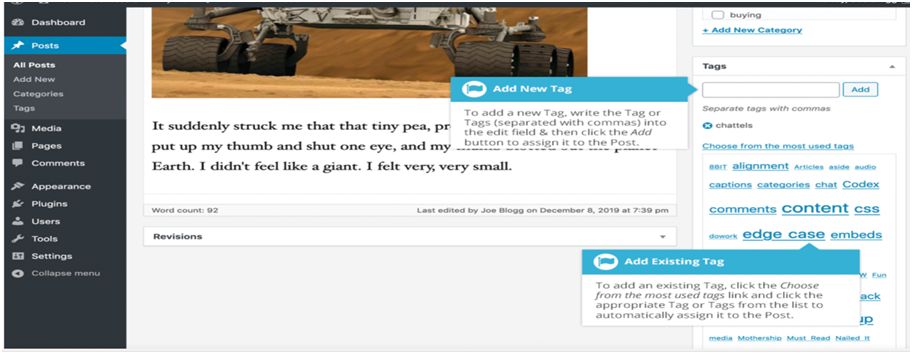
The Post Editor has a section to make tags. From the dropdown menu, click ‘Tags’ and enter a name in the ‘Add New Tag’ section. WordPress will automatically assign this tag to your current post. You can also opt for multiple tags.

Enter one at a time and take care to separate them using commas. While tags help organize content, don’t go overboard by adding more than 10 to a given post.

Tags to Posts

Image Source: EasyWPGuide

Conclusion

Tags and categories are vital for improving the accessibility and navigation of your website. Without these two, you cannot expect to give your audience a seamless user experience. Adding them to your posts will optimize your website and ensure that it ranks higher in the SERPs. Follow the steps shared in this guide to get started!

Social media platforms today, can be utilized to fulfill many more goals than just managing your social presence. Companies are now able to personify their brand and engage with their audience so much more through their social media channels. As of 2025, it is estimated that more than 4.1 billion people actively use social media platforms every month, and most of them use social media on their mobile devices.

It is due to this constantly growing popularity of social media, that multiple social media management apps have now flooded the space. Many companies now handle their social media channels through these applications or by hiring an SEO agency to take care of their requirements.

While most of them offer similar features, there are also unique ones that some of these apps offer that make them the top social media management apps available out there right now. Here are the top social media management applications and tools that can help you manage your social presence in 2025:

1. Hootsuite

Founded by Ryan Holmes in 2008, when social media was still in its nascent stages, Hootsuite is a name synonymous with comprehensive social media management. Over the years, the features and services offered by the application have evolved and become only more sophisticated. With over 18 million customers and trusted by 80% of the companies within the Fortune 1000, Hootsuite has consistently topped the list of preferred social media management applications in the past decade.

Hootsuite

Source: Hootsuite

Hootsuite is known for its easy interface and stellar customer support which has helped it expand its global customer base. Additionally, it offers options to connect with over 35 social media networks.

Additionally, some of the primary features offered by Hootsuite are as follows:

  • Offers a free plan and four paid plans – professional, team, business, and enterprise
  • Crafting and Scheduling posts on social media channels
  • Complete social media management including posts and messages
  • Running campaigns and monitoring the social media performance through analytics

Hootsuite offers several of these features within the free plan, but a paid plan that is suited to your organization’s needs will offer your team more tools and features to build a powerful social media presence.

2. HubSpot

HubSpot – the big old favorite content marketing tool used by marketers worldwide, also has social management software if you want to integrate all your content marketing efforts in one place. While HubSpot has already established its dominance in the digital marketing sphere through its diverse tools and integrations, one of its best features is that the software offers something for every brand – regardless of how big or small.

Here are some of the great features offered by HubSpot:

  • Monitoring brand impressions, mentions, and messages
  • Scheduling posts and tracking their engagement and performance
  • Building marketing campaigns and managing them within the app
  • Integrations with Salesforce accounts and website CTA monitoring options for easy collaboration within teams and stakeholders

HubSpot has tools and integrations to fit every budget, and you can use some of these tools to polish your social media efforts even when you can not invest in a complete subscription.

3. SproutSocial

SproutSocial is an internet favorite and has established its credibility by practicing what they preach. While their mission suggests that they aim to help businesses grow through their social media, their real appeal lies in their data-driven approach combined with robust personalizations. Whether it is their colorful interface with data represented in dynamic graphs and charts or their engaging social media presence, the brand is pretty hard to ignore. SproutSocial has a large and credible customer base consisting of renowned names such as Shopify, Zendesk, Edelman among others.

SproutSocial

Source: SproutSocial

Here are some of the features that put SproutSocial on the list of top social media management apps:

  • Social media management tools for scheduling, monitoring, and tracking performance
  • Additional tools for sentiment analysis and curating social experiences on channels
  • Dedicated features that focus on employee advocacy and influencer engagement
  • Centralized dashboard for managing all campaigns and social media marketing activities

SproutSocial has gained popularity through its ability to provide tools that help all kinds of social media marketers and its authoritative position in the field of social media.

4. Sendible

If you are an agency looking for a social media management platform that helps you manage campaigns for multiple clients in one place, Sendible is a great alternative for you. Sendible differentiates itself from the other more popular social media management tools by making the user experience easier by providing a much simpler interface to work with. The app offers multiple options that can make the process of handling multiple social media accounts and campaigns seem effortless.

Sendible

Source: Sendible

Here are some features that put Sendible high on the list of top social media management tools for 2025:

  • Seamless tracking and monitoring of multiple campaigns and accounts
  • A mobile application making scheduling and working on the go, much easier
  • Facilitates scheduling and management of social media, team communication in one place

The clutter-free dashboard offered by Sendible put together with an array of features including analytics and monitoring, makes it a great option for companies that want to create impactful campaigns.

5. Buffer

Buffer is a renowned social media management tool for companies that are looking for great features at flexible prices. Buffer offers some of the most diverse range of plans including tools and integrations that are great for social media monitoring and management. Great for individuals and teams, Buffer has a highly streamlined dashboard which makes it easy for brands to focus on all aspects of their social media channels.

Here are the features that you can expect from Buffer when you choose it as your social media management tool:

  • Highly intuitive tools and a clean interface that create an uncluttered experience
  • Options for scheduling, monitoring, and measuring your social media performance
  • Integrations for tracking analytics, report generation, and team collaboration
  • Highly efficient customer support

Buffer has been around for long enough to establish its reputation as a highly effective social media management tool through its efficient interface design and features.

6. AgoraPulse

Similar to most of the others on this list, AgoraPulse is a dedicated social media management tool that can help companies monitor, schedule, and manage their social media presence. What makes it a bit different from other tools are the unique features that the application offers within paid plans and as add-ons. Apart from its subscription plans, AgoraPulse also offers an array of free tools that agencies and companies can use to be on the top of their social media game.

Here are a few features that make AgoraPulse highly beneficial as your social media management tool:

  • Scheduling, monitoring, and tracking social media performance and related metrics
  • Offers agencies and companies the ability to conduct competitive analysis and compare social media performance with others in the industry
  • Dedicated social inbox, team collaboration tools, and easy report generation options
  • Offers Facebook contest apps within the application at affordable prices

AgoraPulse can be a great tool to help you optimize your social media performance and engagement at affordable prices.

7. CoSchedule

Like HubSpot, CoSchedule offers a lot more than just a social media management tool. As the name suggests, CoSchedule is definitely one of the best when it comes to scheduling any type of posts such as emails, social media, and content. It has a wide range of integrations and features that companies can use to monitor their marketing activities across the board.

Some features that make CoSchedule one of the top social media management apps are:

  • Unique scheduling features offered by no other platform
  • One of the most robust apps for a comprehensive marketing calendar that integrates all your digital channels in one place

With a wide range of paid plans to suit every budget and need of individuals, companies, and agencies, CoSchedule is a great tool to manage all your online marketing efforts through a single dashboard. Moreover, the application has a ReQueue feature which allows brands to find the most optimal posting times so that they can fill in any gaps and schedule posts accordingly.

CoSchedule

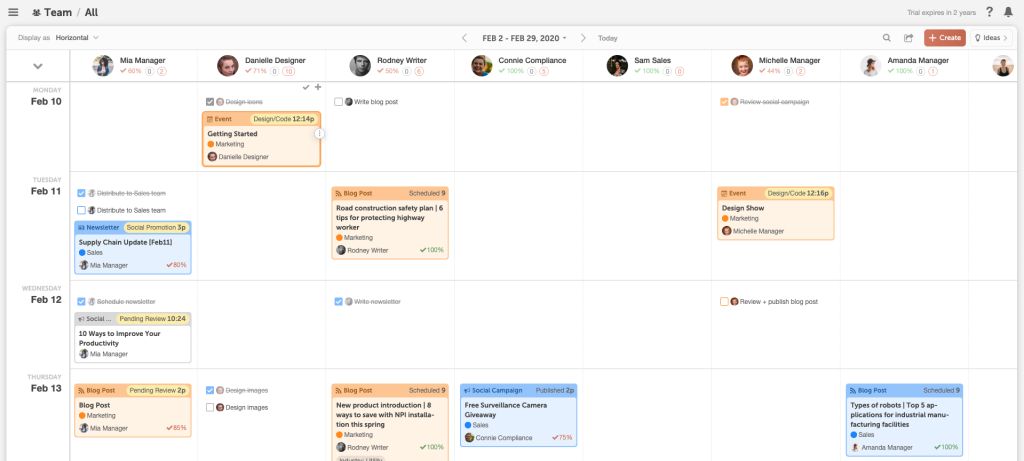
Source: CoSchedule

With prestigious clients like Forbes, UNICEF, Yamaha, and P&G on its ante, CoSchedule has put itself on the map through its highly efficient scheduling tool designed specifically for marketers. CoSchedule may not be the ideal tool if you are looking for advanced social media management tools, but it offers an array of tools that would help you schedule your posts better and ensure that your team efforts are synchronized.

Choose from the Best

Most social media management applications that have a comprehensive product generally offer features and integrations that enrich your social media management experience. More than anything, you should check whether the chosen social media management app helps you save on time and resources. If it does and falls within the budget that you have decided for your social media, investing in any of the apps is a great idea. These apps can ensure that your campaigns and actions are always aligned and that you can get the best out of your social media presence.

Scroll to Top