

The video I want to walk you through is a 20-second news package, and I built it inside the NepTime AI Video Editor. I kept the screen recording of that session, so I can point at what happened instead of describing it from memory. The recording runs 18 minutes and 14 seconds. The clip I was trying to finish was 20 seconds long, so most of that gap was me watching the assistant work, then fixing what it got wrong. My editing habits made it harder than it needed to be: capture in one app, trimming in another, voiceover somewhere else, captions in a fourth, and an upload form at the end. I run Version 6 LLC, which makes NepTime, so weigh what follows with that in mind.
What “beside the timeline” means
There are two ways to use AI inside an editor. In the first, you type a prompt, wait, and receive a finished clip. You like it or you do not, and if you do not, you prompt again and hope the parts you liked survived the second attempt. The second way puts the assistant next to a normal timeline, so it makes changes you can see as clips sitting on tracks you can adjust by hand. That sounds like a detail until something comes back wrong and you can see what it touched. You will get a workflow, plus an honest account of where the AI helped and where it left me doing the work.
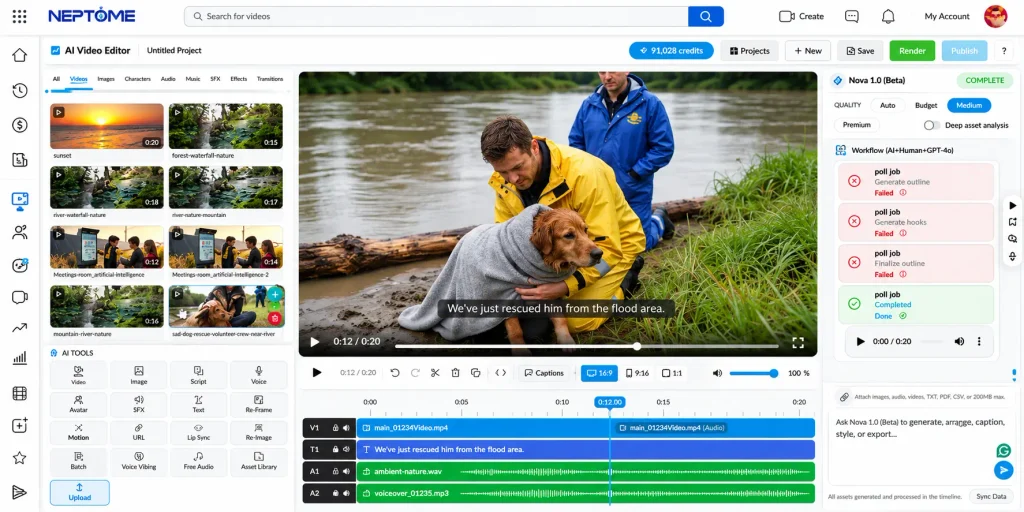
NepTime’s editor works the second way. The docs describe a multi-track timeline where clips sit on video, audio, text and caption tracks, with effects and transitions as part of that timeline, inside a three-pane layout with the preview and timeline in the middle. In my session the media library and the AI tools sat on the left, and the Nova chat panel was docked on the right beside the preview. The assistant is called Nova 1.0 [Beta], and it is not the product wearenova.ai, which the docs say outright. The chat models it can use are listed on a public catalog page, and when I checked on October 28 that page reported more than forty active chat models.
Stage 1: from raw clip to an organized project
Getting the footage in
I uploaded a short video of a dog being carried out of a river, and that clip was the only real footage in the project. Everything else came later from generation. The media library filters by Videos, Images, Audio, Music and SFX, so I narrowed it down to just the video before pulling anything onto the timeline, which saved me scrolling past generated stills later and wondering which ones I had asked for. Uploading in the browser was unremarkable, the nicest thing I can say. There was no setup step to forget. The clip appeared in the library and I dragged it onto a track. I will not tell you which file sizes or durations the editor handles comfortably, because the docs do not publish limits and I did not test the edges.
Deciding what the video has to say before touching AI
Before I asked Nova for anything, I wrote the job down in four lines. Anchor on V1, cutaways on V2, a lower-third name chyron on V3, narration on A1, music on A2. Twenty seconds, 16:9. I also decided the story, because I already knew the assistant was going to need it and I did not want to negotiate over it later. Writing that brief took me less time than reading Nova’s first response back to me. This is the step people skip, and the step that matters. If you cannot say what the video has to say in a sentence, an assistant will happily generate a great many seconds of nothing.
Stage 2: from rough material to a trimmed cut
Asking Nova for an edit
Here is the prompt I used, and it happens to be one of the built in presets. I picked it deliberately rather than writing from scratch, because I wanted a request specific enough that I could tell whether Nova had followed it. The text names a track for every element, a duration, an aspect ratio, a font and a size. I pasted it in, and then Nova sat in a planning state for a while, running what the panel called deep asset analysis, before producing a single frame I could look at and judge for myself in context, on the timeline.
“Create a 20-second news video in 16:9 about a breaking story: primary anchor or news footage on V1, B-roll cutaways on V2, lower-third name chyron on V3 (Oswald Bold 28px white on dark bar at y=90%), narration on A1, subtle news-sting music on A2, mandatory auto-captions.”
Nova then stopped and asked me a question: “What breaking story should the 20-second report cover? Please give me the headline and any key facts you want included.” That question was correct, and I had set it up myself. I had specified the format and left out the content, so any headline it invented would have been a fabrication dressed up as journalism. I typed four words back: “dog rescued from a river.” Nova went back to work without arguing, which I appreciated more than I expected to. The visible progress was reassuring too, with the panel showing planned, generated, assembled, added and verified steps.
The edits you still did by hand
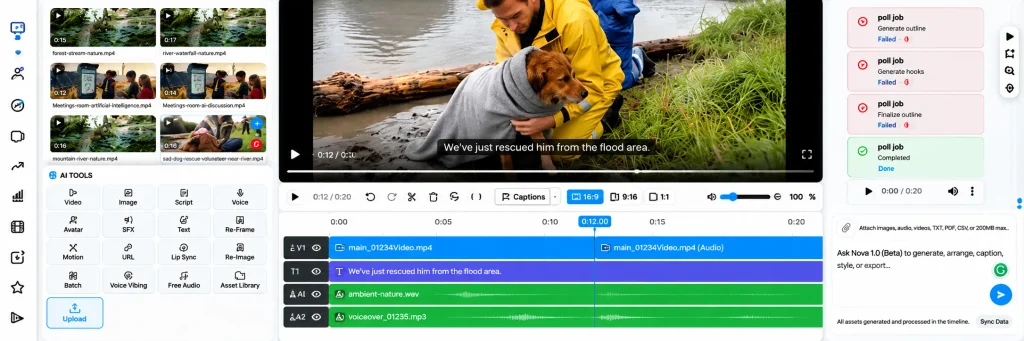
Three things stayed with me. The first was length. I asked for 20 seconds and the timeline finished at 12. Nothing in the session explained the missing eight seconds, so I treated the request as unmet and fixed it. The second was captions. Nova’s message told me no speech was detected in the timeline audio and advised me to add the caption lines myself rather than retrying the caption step. It was right about the cause and right about the fix. The third was the chyron, where I had specified a font, a size and a position and the result still needed adjusting by eye. Pacing stayed mine throughout. None of these were failures. They were the edits I would have made anyway.
Filling a gap with generated media
Most of this video did not exist before I started. Nova generated the anchor and cutaway footage from the headline, produced the narration for A1 and the music bed for A2, and laid them across the tracks. The editor also includes text-to-video, image-to-video, AI voiceover, lip sync, and Ref to Image and Img to Video to hold a character consistent between shots. I used none of the character tools here, and I will not tell you they work well or badly, because I did not try them. What I did use was text-to-video and voice generation, and both needed correction. One failure was a speech-to-text API error returning HTTP zero, which told me the recognition call never reached a server, a completely different problem from a model returning a poor clip.
Stage 3: from a finished cut to published, in the same place
Captions and sound check
Captions were the weak point, and the cause was speech detection rather than styling. Once the caption lines were on the track, I read them against the narration by ear instead of trusting that they had been written correctly. The lower-third had a similar problem. It looked close to what I specified and still needed nudging. The generated video looked right before the caption line landed on it, and the caption line was wrong. Sound was worse. I had a music bed on A2 at full level with narration on A1, which is not a mix, it is a fight. Pulling the music down and rechecking the narration under it took a few passes by ear, and none of that work was available to the assistant. Sound is the part of this workflow I still do entirely myself.
Render and Publish to NepTime
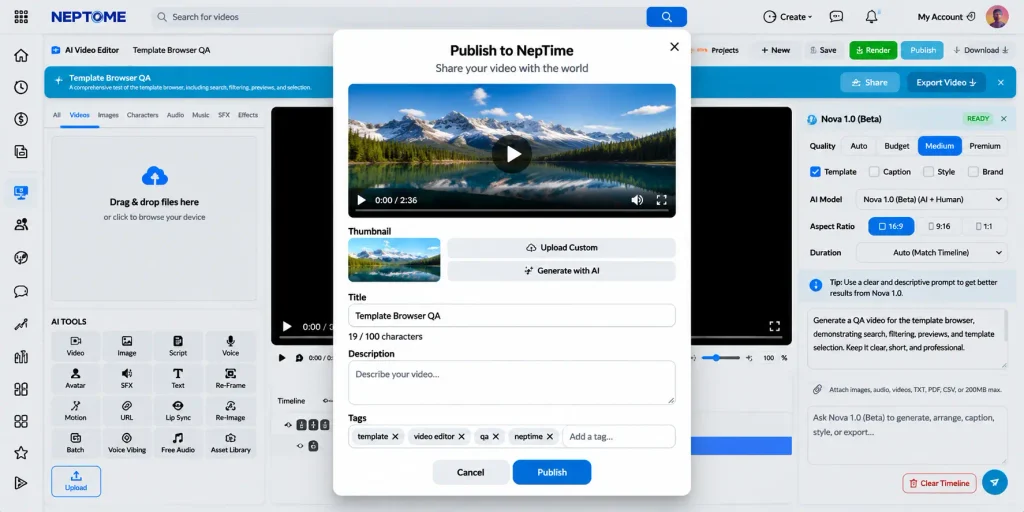
Projects move through statuses such as draft, rendering, completed, failed and published, so you can tell whether something is still processing or needs another attempt. When the render came back clean, Publish to NepTime posts to your channel with a title, description and category. The dialog also takes tags and a video type, and counts title characters as you type. The part I still find satisfying is what is missing. There was no export, no file on my desktop, and no upload form. The NepTime AI Video Editor sends the finished render to the same account that hosts the channel, which is the whole reason I wanted to edit and publish video in one place. The publish step took a minute. What took the time was the corrections before I rendered.
Where the AI assistant saves time, and where it doesn’t
| Helped | Didn’t help, or still needs me |
| Laying video, narration and music across tracks from one prompt | Deciding what the video should say, and what it should leave out |
| Asking me a clarifying question before it generated anything | Writing that brief myself in the first place |
| Showing job progress and naming the actual error | Recovering from a generation that failed |
| Generating the missing voiceover and music bed | Judging whether a generated clip is usable |
| Publishing a finished render without an export step | Caption accuracy, chyron placement and the final listen |
Which single task would I never go back to doing manually?
Laying a narration track and a music bed under footage I already had. That used to be fiddly drag work with the timing adjusted by eye, and it is now a prompt and a check. It is the part of an AI video editing workflow that I would genuinely miss if it disappeared, and it is also the part where a mistake is easy to catch, because I can hear the result and the assistant cannot hear anything at all.
Which task did the AI make slower?
Recovering from a failed generation. When a job dies and I have to work out why from a panel, I would rather have dragged the clip onto a track myself and moved on. Knowing why something failed does not make the fix fast, it just makes the failure easier to describe afterwards. The same is true of any tool that tells you more about what went wrong than it helps you fix it.
What does someone still have to check before publishing?
Anything factual. Names on screen, figures, music rights, and generated faces or voices. The timeline will not catch a wrong name and neither will the assistant, so if a name appears in frame, a person reads it before anything else happens. I put that in the same list as the captions, because both come down to the assistant never checking its own output the way I can.
The screen recording I kept of that session runs 18 minutes and 14 seconds for a 20-second target, and the timeline finished eight seconds short of what I asked for, which I fixed by hand. That is my recording, not an average and not a benchmark, and I have no idea whether it is typical. I would not trust anyone who tells you their own numbers are typical, because nobody measures the sessions where the tool made them slower. If you want a promise, this is the only one I can make, and it is a smaller promise than marketing offers.
When a desktop editor is still the better choice
I still open a desktop suite for color grading, for complex audio mixing, for heavy effects, and whenever another person needs the project file. I am not going to pretend a browser timeline is that yet. The distinction that matters to me is not how many features each one has, it is whether the work needs to leave my machine in a form somebody else can pick up and keep working on. That is a workflow question before it is a feature question, and it is the one I ask first now. DaVinci Resolve’s own product page makes the case plainly, with color correction on the color page, audio post-production on the Fairlight page, and visual effects and motion graphics on the Fusion page.
For me the dividing line is simple. If the job is a short cut that lives on my own channel, the browser editor is enough and it saves a handoff. If the job is graded, mixed, or handed to somebody else, I want the project file, and I want the desktop suite. Calling a browser editor a replacement for a desktop one is how you end up with neither tool doing the job it is good at. The honest version of this section is that the two do different work rather than one replacing the other in every case I have worked on.
Try it on your next short video: a quick checklist
- Write the one sentence the video has to say, before you open anything.
- Put every usable file in one project and name it so you can recognise it later.
- Ask for one thing at a time, and keep the request specific enough to check.
- Watch the timeline after every change. If you cannot see it, you cannot judge it.
- Listen to the captions and the mix before you render anything.
- Publish, then open the live page and watch the published video, not the project.
FAQs
Can AI edit a whole video for me?
It can build a draft from a brief, and that draft is the starting point rather than the finished piece. Every time I have let one run to the end without watching, I have found something to fix. The word that matters there is draft.
Do I need to install anything?
No. The editor runs in the browser and you need a NepTime account. Signed out, the app sends you to the login page before it opens, and the projects, media and credits belong to that account.
What still has to be checked before publishing?
Anything factual on screen, and every generated face or voice. The timeline will not catch a wrong name, and neither will the assistant, so a person reads every word that appears in the frame.
Should I disclose AI-generated material?
Yes, if any of it is generated, and I mean the voice as much as the face. If a viewer can hear a synthetic voice or see a generated face, say so in the description. If the footage is yours and the AI only trimmed it, say what you used and what you checked.
Final thoughts
Before this session I assumed the work was the cut. Now I think the cut is the easy part, and the real work is deciding what the video should say before anything touches the timeline. The assistant was fastest when I had already decided that, and slowest when I had not. I still fix every caption by ear, and I still open a desktop suite for the jobs that need one. But I no longer move the same clip between four windows to get it finished, and that is the part I am keeping. The workflow got shorter. The decisions did not get smaller, and I do not think they should.

Chris Mcdonald has been the lead news writer at complete connection. His passion for helping people in all aspects of online marketing flows through in the expert industry coverage he provides. Chris is also an author of tech blog Area19delegate. He likes spending his time with family, studying martial arts and plucking fat bass guitar strings.